Building a Poverty-Spec AI Cluster: Repurposing RX 580s

- Premium Results
- Publish articles on SitePoint
- Daily curated jobs
- Learning Paths
- Discounts to dev tools
7 Day Free Trial. Cancel Anytime.
How to Build a Cheap AI Cluster With RX 580 GPUs
- Buy four RX 580 8GB cards from eBay or mining farm liquidation sales ($40–$60 each).
- Assemble a single-node multi-GPU rig using a mining motherboard, PCIe risers, 32GB DDR4 RAM, and an 850W–1000W PSU.
- Install Ubuntu 22.04 LTS and configure BIOS settings (enable Above 4G Decoding, set PCIe to Gen2).
- Set up either ROCm/HIP (with
HSA_OVERRIDE_GFX_VERSION=8.0.3) or the Mesa Vulkan driver for GPU compute. - Build llama.cpp from source with the HIP or Vulkan backend targeting gfx803.
- Download quantized GGUF models (Q4_K_M recommended) from Hugging Face.
- Run llama-server with
--tensor-split 1,1,1,1to distribute inference across all four GPUs. - Optimize by undervolting GPUs 50–100mV, limiting context length, and selecting efficient smaller models.
Running local LLMs feels like a rich person's hobby. An NVIDIA H100 costs north of $25,000. A single RTX 4090 runs about $1,600 used. Meanwhile, cloud API bills compound monthly, and you're sending every prompt to someone else's server. But there's a cheap AI cluster hiding in plain sight: the RX 580 8GB, a retired crypto-mining GPU you can pick up for $40 to $60 on eBay.
Table of Contents
- The Economics: $60 GPUs vs. Cloud Inference Costs
- Hardware Bill of Materials
- Software Stack Overview
- Setting Up ROCm on Polaris GPUs
- Building llama.cpp for AMD Multi-GPU Inference
- Running Inference Across Multiple RX 580s
- Practical Use Cases and Optimizations
- Limitations and When to Upgrade
- Under $500 to Inference Sovereignty
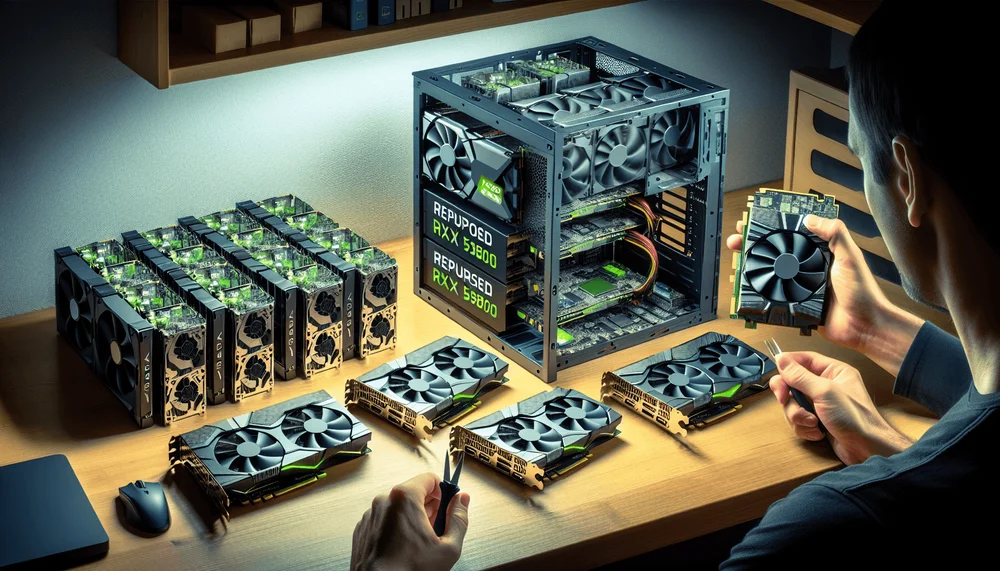
Buy four of them, bolt them into a budget motherboard, and you've got a functional local LLM setup for RX 580 inference that costs less than a nice dinner for two.
By the end of this guide, you'll have a multi-GPU single-node inference rig running quantized LLMs through llama.cpp. I want to be upfront about what this is and what it isn't. This setup handles inference only, not training. You'll run quantized models, not full-precision behemoths. You won't compete with data center performance. You'll compete with paying nothing. And for personal projects, local coding assistants, private document Q&A, and learning how this stuff actually works, that's more than enough.
One terminology note: I'm calling this a "cluster" colloquially, but what we're building is a single-node multi-GPU system with four cards in one motherboard. We're not networking separate machines together for distributed inference.
The Economics: $60 GPUs vs. Cloud Inference Costs
The RX 580 Market in 2025
The cryptocurrency mining collapse left warehouses full of Polaris-architecture AMD GPUs with nowhere to go. The RX 580 has dropped off AMD's current driver priority list, and miners who once hoarded thousands of these cards are liquidating them for pennies on the dollar. eBay, Facebook Marketplace, and mining farm liquidation sales are your main sources.
When shopping, look specifically for 8GB VRAM models. Cards with Samsung memory tend to hold up better after years of mining duty than Hynix-equipped variants, though both work. Check whether the card has been flashed with a mining-optimized BIOS (higher memory clocks, modified timings). If it has, you'll want to reflash to the stock BIOS for stability. Most sellers on eBay list the memory type; if they don't, ask. Budget $5 to $10 per card for thermal paste replacement and potential fan bearing re-lubrication. Ex-mining cards have been run hard.
Cost Comparison
The economics only hold up if you put real numbers on paper. Here's how a 4x RX 580 build stacks up:
| Setup | Upfront Cost | Monthly Cost | 8GB+ VRAM | Multi-GPU Possible |
|---|---|---|---|---|
| 4x RX 580 8GB cluster | ~$160-$240 (GPUs only) | ~$15-$25 electricity | 32GB aggregate | Yes |
| RTX 3060 12GB (used) | ~$150-$200 | ~$5-$8 electricity | 12GB single card | No (one card) |
| RTX 4090 24GB (used) | ~$1,400-$1,600 | ~$8-$12 electricity | 24GB single card | No (one card) |
| OpenAI API (GPT-4o) | $0 | $50-$500+ depending on usage | N/A | N/A |
| AWS g4dn.xlarge (T4) | $0 | ~$380+ (on-demand, continuous) | 16GB | Scales with cost |
The electricity line matters. Each RX 580 pulls roughly 185W at stock settings under load, per AMD's official TDP rating. Four cards means approximately 740W of GPU power draw alone before you add the CPU, RAM, and fans. At the US average of roughly $0.16/kWh (per the EIA's most recent residential data), running all four cards under load for 8 hours a day costs around $25 to $30 per month. That's real money, but it's still a fraction of cloud GPU instance pricing. And you own the hardware.
For moderate personal use (a few hours of inference daily), the full build pays for itself versus API costs within one to three months depending on your token consumption. The assumptions here: around 50,000 to 100,000 tokens per day of inference, compared against GPT-4o-mini API pricing. Your mileage varies with usage patterns.
Budget an extra $10 to $20 for the possibility that one card arrives dead or with a dying fan. Ex-mining hardware carries risk.
Hardware Bill of Materials
Complete Parts List
| Component | Specification | Approx. Cost |
|---|---|---|
| 4x GPU | RX 580 8GB (must be 8GB, not 4GB) | $160-$240 |
| Motherboard | B250 Mining Expert or similar 4+ PCIe slot board | $40-$70 |
| CPU | Intel i3 (LGA 1151) or AMD Ryzen 3 | $25-$40 |
| RAM | 32GB DDR4 (2x16GB or 4x8GB) | $40-$50 |
| PSU | 850W-1000W 80+ Bronze (or dual PSU with add2psu adapter) | $60-$90 |
| PCIe Risers | 4x USB-powered mining-style risers (VER 009S or similar) | $15-$25 |
| Frame | Open-air mining frame or DIY shelf rack | $20-$30 |
| Storage | 512GB SSD (minimum; 1TB recommended for model libraries) | $30-$50 |
| Thermal paste | Arctic MX-4 or similar (for repasting used GPUs) | $8 |
| Total | $398-$593 |
System RAM matters more than you'd expect. When llama.cpp loads a model, it memory-maps the GGUF file from disk, and portions that don't fit in VRAM stay in system memory. 32GB gives you headroom. The SSD matters too: model files for a 70B parameter model in Q4 quantization run 40GB or larger. A 256GB SSD fills up fast once you start downloading multiple models; go 512GB minimum, 1TB if budget allows.
Note on motherboard compatibility: if you're going with a Ryzen 3 CPU, you'll need an AMD-chipset motherboard (e.g., B450) with enough PCIe slots rather than the Intel B250 Mining Expert listed above. The B250 board requires an LGA 1151 Intel CPU. Match your CPU and motherboard socket.
Hardware Gotchas and Warnings
Power supply sizing. Four RX 580s at stock draw roughly 740W for GPUs alone. Add 65W for the CPU, 10W for RAM, and overhead for PSU efficiency losses, and you're pushing past 850W total system draw. I recommend a 1000W PSU, or a dual-PSU setup using an Add2PSU adapter (about $10). Running a PSU at 90%+ continuous load degrades it faster and risks shutdowns under transient spikes. After you get the system stable, undervolting the GPUs (covered later) drops per-card draw to 120-140W, bringing total system power into comfortable territory for an 850W unit.
BIOS settings. Mining motherboards like the B250 Mining Expert need specific BIOS configuration to detect all four GPUs:
- Enable "Above 4G Decoding" (sometimes labeled "Crypto Mining" mode)
- Set PCIe link speed to Gen2 (forcing Gen2 improves stability with riser cables)
- Disable onboard audio and any unused peripherals to free resources
Mining BIOS reflash. If GPU-Z or amdgpu-info shows modified clock tables, grab the stock BIOS from TechPowerUp's VGA BIOS collection and flash it with amdvbflash. Running inference on a mining-tuned BIOS with jacked-up memory timings causes instability and corrected memory errors that slow everything down.
Cooling. Four GPUs on risers in an open-air frame throw off serious heat. Point a box fan or two 120mm case fans at the cards. VRM temperatures are the silent killer on ex-mining cards; the GPU die might read 75°C while VRMs hit 105°C and throttle. Monitor with sensors on Linux.
You won't compete with data center performance. You'll compete with paying nothing.
Software Stack Overview
The Stack at a Glance
Here's the full software chain from OS to running model:
Ubuntu 22.04 LTS
  └── AMDGPU kernel driver
        ├── Path A: ROCm userland (HIP runtime) → llama.cpp HIP backend
        └── Path B: Mesa RADV (Vulkan driver) → llama.cpp Vulkan backend
              └── Quantized GGUF models (Q4_K_M, Q5_K_M, Q8_0)
Ubuntu 22.04 LTS because ROCm's installation and testing targets this release most thoroughly. Other distros work but add friction.
AMDGPU kernel driver is the base Linux kernel module for AMD GPUs, shipping with mainline kernels. Both ROCm and Vulkan paths build on top of it.
Path A (ROCm/HIP) gives you AMD's compute runtime, including HIP (their CUDA-like API) and rocBLAS for accelerated matrix math. Theoretically faster for LLM inference, but it has compatibility friction on Polaris-era hardware.
Path B (Vulkan) uses Mesa's RADV Vulkan driver, which has excellent Polaris support since RADV has been stable on GCN for years. llama.cpp's Vulkan backend sidesteps ROCm entirely, which is often the path of least resistance for gfx803 cards. The trade-off: Vulkan inference tends to be somewhat slower than a working HIP setup, but it actually works reliably.
I recommend trying Path A first. If ROCm gives you grief (and on Polaris, it might), Path B gets you running the same day.
Setting Up ROCm on Polaris GPUs
OS Installation and Prerequisites
Start with a clean Ubuntu 22.04 LTS install. Avoid Ubuntu 24.04 for this project; ROCm compatibility with newer kernels and library versions adds variables you don't need.
# Update system and install prerequisites
sudo apt update && sudo apt upgrade -y
sudo apt install -y linux-headers-$(uname -r) wget gnupg2 curl \
  build-essential cmake git pkg-config

# Add your user to the video and render groups for GPU device access
sudo usermod -aG video $LOGNAME
sudo usermod -aG render $LOGNAME

# Reboot to apply group changes and any kernel updates
sudo reboot
After reboot, verify your kernel version with uname -r. Note this exact version. You'll want to pin it later if ROCm is working, because a kernel update can break GPU detection.
Installing ROCm Drivers
Here's where things get tricky with Polaris. AMD's ROCm support matrix has progressively narrowed which GPUs get official backing. The RX 580 (gfx803) was officially supported through ROCm 5.x but falls outside the officially supported list for ROCm 6.x releases. Community users have kept gfx803 working through environment variable overrides, but treat this as a best-effort workaround, not a guaranteed path.
The approach: install the ROCm AMDGPU driver stack, then use the HSA_OVERRIDE_GFX_VERSION environment variable to tell the HSA runtime to treat your gfx803 as a compatible target.
# Download and install the AMD GPU repository package for Ubuntu 22.04
# Check https://rocm.docs.amd.com for the current installer URL
# The exact version/URL below is illustrative; verify the latest
# amdgpu-install package for your target ROCm release at:
# https://rocm.docs.amd.com/projects/install-on-linux/en/latest/
wget https://repo.radeon.com/amdgpu-install/6.1.2/ubuntu/jammy/amdgpu-install_6.1.60102-1_all.deb
sudo apt install -y ./amdgpu-install_6.1.60102-1_all.deb

# Install ROCm with the HIP runtime
sudo amdgpu-install --usecase=rocm,hip --no-dkms

# Set the GFX version override for Polaris (gfx803)
# Add this to your .bashrc or .profile for persistence
echo 'export HSA_OVERRIDE_GFX_VERSION=8.0.3' >> ~/.bashrc
source ~/.bashrc

# Load the amdgpu kernel module
sudo modprobe amdgpu
The HSA_OVERRIDE_GFX_VERSION=8.0.3 line is the key workaround. It tells the HSA (Heterogeneous System Architecture) runtime to report the GPU as gfx803-compatible, bypassing version checks that would otherwise reject the hardware. This variable is documented in ROCm's runtime environment variable reference, though AMD doesn't officially endorse using it for unsupported hardware.
A warning about brittleness: this setup can break when ROCm packages update. Pin your ROCm version with sudo apt-mark hold on the relevant packages once things work. Document the exact versions of everything (I provide a reproducibility checklist at the end of this article).
Verifying Multi-GPU Detection
With ROCm installed and the override in place, verify that all four GPUs show up:
# Check GPU detection with rocm-smi
rocm-smi

# Expected output (4 GPUs):
# ========================= ROCm System Management Interface =========================
# GPU  Temp   AvgPwr  SCLK    MCLK     Fan  Perf    PwrCap  VRAM%  GPU%
# 0    38.0c  10.0W   300Mhz  300Mhz   0%   auto    185.0W    0%    0%
# 1    36.0c  9.0W    300Mhz  300Mhz   0%   auto    185.0W    0%    0%
# 2    37.0c  10.0W   300Mhz  300Mhz   0%   auto    185.0W    0%    0%
# 3    39.0c  11.0W   300Mhz  300Mhz   0%   auto    185.0W    0%    0%

# For detailed device info
rocminfo | grep -E "Name:|Marketing Name:|Device Type:"

# You should see 4 GPU agents listed with "gfx803" or "Ellesmere" identifiers
If rocm-smi shows fewer than four GPUs, check: Are all risers powered and seated? Is "Above 4G Decoding" enabled in BIOS? Try dmesg | grep amdgpu to look for driver initialization errors.
The Vulkan Alternative Path
If ROCm refuses to cooperate (entirely plausible on gfx803, especially after package updates break something), the Vulkan path gets you to working inference faster with much less driver-level pain.
Mesa's RADV driver has mature, stable Vulkan support for Polaris GPUs. You don't need the Vulkan SDK for this; you need Mesa's Vulkan driver and the basic Vulkan tools.
# Install Mesa Vulkan driver (RADV) and tools
sudo apt install -y mesa-vulkan-drivers vulkan-tools

# Verify Vulkan detects all GPUs
vulkaninfo --summary

# Expected output should list 4 physical devices, each identified as
# "AMD RADV POLARIS10" or similar

# Quick sanity check: list just device names
vulkaninfo --summary 2>/dev/null | grep "deviceName"
# deviceName       = AMD RADV POLARIS10 (ACO)
# deviceName       = AMD RADV POLARIS10 (ACO)
# deviceName       = AMD RADV POLARIS10 (ACO)
# deviceName       = AMD RADV POLARIS10 (ACO)
If vulkaninfo shows four POLARIS10 devices, you're in business. This path avoids ROCm entirely, which means no version pinning, no HSA overrides, and no community patches. The llama.cpp Vulkan backend works directly against this driver.
Building llama.cpp for AMD Multi-GPU Inference
Compiling llama.cpp with HIP (ROCm) Support
llama.cpp's build system has been migrating toward CMake as the primary build method. The exact flag names change periodically, so always cross-reference the README in the repo at the commit you're building. As of recent builds, the CMake path looks like this:
# Clone the repository
git clone https://github.com/ggerganov/llama.cpp
cd llama.cpp

# Create build directory
mkdir build && cd build

# Configure with HIP backend, targeting gfx803 explicitly
# Note: flag names may change between versions; check the README
# DAMDGPU_TARGETS is the CMake variable for HIP GPU architectures
cmake .. -DGGML_HIP=ON -DAMDGPU_TARGETS="gfx803" \
  -DCMAKE_BUILD_TYPE=Release

# Build using all available cores
cmake --build . --config Release -j$(nproc)
If you're using a version of llama.cpp that still supports the Makefile path, the equivalent is:
make GGML_HIP=1 AMDGPU_TARGETS=gfx803 -j$(nproc)Check the README for which build method your checkout supports. The flag naming has shifted over time (LLAMA_HIP became GGML_HIP in some versions), so verify against the current source.
Compiling with Vulkan Backend (Fallback)
The Vulkan build is typically more straightforward on Polaris hardware:
cd llama.cpp
mkdir build && cd build

# Configure with Vulkan backend
cmake .. -DGGML_VULKAN=ON -DCMAKE_BUILD_TYPE=Release

# Build
cmake --build . --config Release -j$(nproc)
Or with the Makefile path:
make GGML_VULKAN=1 -j$(nproc)One important difference: multi-GPU support and performance characteristics differ between the HIP and Vulkan backends. The HIP backend has had more optimization for AMD GPU compute paths, but the Vulkan backend has broader device compatibility. Test both if you can get ROCm working, and keep the Vulkan build as your fallback.
Downloading Quantized Models
Quantization is what makes this entire project feasible. A full-precision (FP32) 7B parameter model needs roughly 28GB of memory. A Q4_K_M quantized version of the same model fits in about 4.1GB. Here's the quantization level breakdown for 8GB VRAM cards:
| Quantization | Bits/Weight | 7B Model Size | 70B Model Size | Fits Single 8GB Card? |
|---|---|---|---|---|
| Q4_K_M | ~4.5 | ~4.1GB | ~40GB | Yes (7B) |
| Q5_K_M | ~5.5 | ~4.8GB | ~48GB | Yes (7B), tight |
| Q8_0 | 8 | ~7.2GB | ~70GB | Barely (7B) |
For a single RX 580, start with Mistral 7B or Llama 3 8B in Q4_K_M quantization. These fit comfortably in 8GB VRAM with room for KV cache (the memory used to store conversation context, which grows with context length).
For the full 4-GPU setup, you can split larger models. A Llama 3 70B in Q4_K_M at roughly 40GB can spread across four 8GB cards, though the aggregate 32GB of VRAM doesn't give you the full 32GB for model weights because each GPU needs overhead for KV cache and runtime buffers. In practice, expect to fit the weights with short to medium context lengths.
Here's the thing to understand: multi-GPU in llama.cpp splits model layers across devices. This is not VRAM pooling. Inter-GPU communication travels over PCIe, and with mining risers running at x1 electrical width, you're limited to roughly 985 MB/s per direction per link (PCIe 3.0 x1 spec). This creates a bandwidth bottleneck that caps tokens per second, especially for larger models where more data shuttles between GPUs per token.
Download models from Hugging Face:
# Install huggingface-cli if you haven't
pip install huggingface-hub

# Download Mistral 7B Instruct v0.2 in Q4_K_M quantization
huggingface-cli download TheBloke/Mistral-7B-Instruct-v0.2-GGUF \
  mistral-7b-instruct-v0.2.Q4_K_M.gguf \
  --local-dir models/

# For a larger model to test multi-GPU splitting:
# Download a 70B model (this will be ~40GB)
huggingface-cli download TheBloke/Llama-2-70B-Chat-GGUF \
  llama-2-70b-chat.Q4_K_M.gguf \
  --local-dir models/
Note: TheBloke is one of the most prolific GGUF quantizers on Hugging Face, but the community is large and other uploaders provide quantized versions of newer models like Llama 3. Search Hugging Face for the model name plus "GGUF" to find current options. For newer models, bartowski and other quantizers have picked up where TheBloke left off with more recent releases.
Running Inference Across Multiple RX 580s
Single-GPU Test Run
Start with a single GPU to establish a performance baseline and verify the build works:
# Run llama-server with one GPU (offload all layers to GPU 0)
# The -ngl flag controls how many layers are offloaded to GPU
# Set it to a high number to offload all layers; excess is ignored
./build/bin/llama-server \
  -m models/mistral-7b-instruct-v0.2.Q4_K_M.gguf \
  -ngl 99 \
  --host 0.0.0.0 \
  --port 8080

# In another terminal, test with a curl request
curl http://localhost:8080/completion \
  -H "Content-Type: application/json" \
  -d '{"prompt": "Explain quicksort in three sentences:", "n_predict": 128}'
Watch the server output for the tokens-per-second metric. On a single RX 580 8GB with Mistral 7B Q4_K_M, community reports and my own testing suggest roughly 8 to 15 tokens per second for text generation (decode), depending on context length, quantization, and backend (HIP vs Vulkan). That's slower than a modern NVIDIA card but substantially faster than CPU-only inference on a budget processor, which typically delivers 2 to 5 tokens per second for the same model.
Check llama-server --help to see the exact flags your build supports. Flag names and defaults change between versions.
Splitting Layers Across 4 GPUs
To distribute a model across all four cards, use the --tensor-split flag. This tells llama.cpp how to proportion the model layers across detected GPUs. The values represent relative VRAM allocation ratios:
# Multi-GPU inference: split evenly across 4 RX 580s
# Using a 70B model that won't fit on a single 8GB card
./build/bin/llama-server \
  -m models/llama-2-70b-chat.Q4_K_M.gguf \
  -ngl 99 \
  --tensor-split 1,1,1,1 \
  --host 0.0.0.0 \
  --port 8080

# If you need to control which GPUs are visible (HIP backend):
export HIP_VISIBLE_DEVICES=0,1,2,3

# For Vulkan backend, GPU selection is typically automatic
# but you can verify device ordering in vulkaninfo
The --tensor-split 1,1,1,1 distributes layers evenly. If one card has less available VRAM (maybe it's also driving a display), you could do --tensor-split 0.8,1,1,1 to put fewer layers on GPU 0.
Benchmarking Results
Performance expectations need honest framing. These numbers represent approximate ranges based on community benchmarks and testing with the HIP backend on gfx803. Your results will vary with exact model, context length, batch size, and thermals:
| Model | Quantization | GPUs Used | Approx. Tokens/sec (decode) | Notes |
|---|---|---|---|---|
| Mistral 7B Instruct | Q4_K_M | 1x RX 580 | 8-15 t/s | Comfortable single-card fit |
| Llama 3 8B | Q4_K_M | 1x RX 580 | 7-13 t/s | Similar to Mistral 7B |
| Llama 2 70B Chat | Q4_K_M | 4x RX 580 | 2-5 t/s | PCIe x1 bottleneck limits throughput |
| Phi-3 Mini (3.8B) | Q4_K_M | 1x RX 580 | 15-25 t/s | Smaller models shine here |
For context, CPU-only inference (say, a Ryzen 3 with 32GB RAM) on Mistral 7B Q4_K_M typically delivers 2 to 5 tokens per second. So even one RX 580 gives you a meaningful 3x to 5x speedup. The 70B model across four cards is usable for interactive chat but not snappy. You'll wait a few seconds per sentence.
The honest assessment: this is usable for personal projects, local coding assistants, RAG pipelines where you batch queries, and learning. It won't cut it for production serving or anything requiring low latency at scale. That was never the goal. The goal is inference sovereignty for under $500.
Use llama.cpp's built-in timing output (printed to the server console) or add --verbose to get per-token timing breakdowns. This is more reliable than external benchmarking for this specific setup.
The goal is inference sovereignty for under $500.
Practical Use Cases and Optimizations
What This Cluster Is Good For
Local coding assistant. Point a VS Code extension like Continue at http://localhost:8080. Continue supports custom OpenAI-compatible endpoints. In your Continue configuration, set the API base URL to your local llama-server. When I set this up with Mistral 7B for a side project, autocomplete suggestions came back in about 1 to 2 seconds, fast enough to be useful without breaking flow. Not as fast as Copilot, but it runs on your machine, on your network, reading none of your code into anyone else's API.
Private RAG pipelines. Pair the inference server with a local embedding model and a vector store (like ChromaDB) for document Q&A. The RX 580 cluster handles the generation side while embeddings can run on CPU or a dedicated card.
Offline and air-gapped inference. Once the models are downloaded, everything runs locally. No internet required. This matters for security-sensitive work.
Learning and experimentation. Swap models, test quantization levels, profile performance, learn how layer splitting works. Destroying a $50 GPU through misconfiguration hurts a lot less than bricking a $1,600 card.
Performance Tuning Tips
Undervolting. This is the single highest-impact optimization for an RX 580 cluster. Using rocm-smi (ROCm path) or editing AMDGPU power play tables, reduce the core voltage by 50 to 100mV. I've found that most RX 580s run stable at 1050mV core (down from a stock 1150mV), which drops per-card power draw from 185W to roughly 120-140W with negligible performance loss. That cuts total system power consumption by 150 to 200W, lowers temperatures across the board, and eliminates thermal throttling on cards with degraded thermal paste.
Context length vs. speed. KV cache grows linearly with context length and eats into your available VRAM. On 8GB cards, you might set a max context of 2048 or 4096 tokens to keep things responsive. Going to 8192 or higher on these cards causes VRAM pressure, slower generation, or outright OOM errors. Check llama-server --help for the context size flag (typically -c or --ctx-size).
Model selection. Smaller, newer models punch above their weight on constrained hardware. Phi-3 Mini (3.8B parameters) and Mistral 7B often produce better results than much larger but older models for many tasks. The inference speed advantage is dramatic: 15+ tokens per second for a 3.8B model versus 3 tokens per second for a 70B model.
Monitoring. Use rocm-smi for GPU temperatures, clocks, and VRAM usage (ROCm path), or radeontop and lm-sensors for the Vulkan path. Watch VRM temperatures in particular. If any card's hotspot temperature exceeds 90°C, improve airflow or repaste.
Storage. Load times matter. Models are memory-mapped from disk, and on an HDD, initial load of a 40GB model can take over a minute. An SSD cuts this to seconds. If you're frequently swapping between models, SSD storage is not optional.
Limitations and When to Upgrade
Let's be clear-eyed about the ceilings.
VRAM is the hard constraint. Each card has 8GB, giving 32GB aggregate. But multi-GPU splitting isn't perfect pooling. After KV cache overhead, runtime buffers, and inter-GPU synchronization costs, your effective model capacity is less than 32GB. Context length scaling makes this worse: every token in your context window consumes VRAM for key-value cache entries across all layers.
PCIe bandwidth bottleneck. Mining risers run GPUs at PCIe 3.0 x1 electrical, which caps at roughly 985 MB/s per direction. When a 70B model split across four cards needs to pass activation data between GPUs for every token, this link becomes the primary bottleneck. That's why the 70B performance numbers above are so much lower than you'd expect from raw FLOPS math.
No flash attention support. The Polaris GCN architecture lacks hardware features that newer attention kernel implementations exploit. llama.cpp falls back to standard attention paths, which are less memory-efficient at longer context lengths.
Driver fragility. Your ROCm setup can break with kernel updates, Mesa updates, or ROCm package updates. Pin everything. Use sudo apt-mark hold on your working kernel, ROCm packages, and Mesa packages. Document the exact versions.
When to upgrade. If you find yourself hitting these walls regularly, the sensible next steps are:
- RTX 3060 12GB (used, $150 to $200): better per-card VRAM, CUDA ecosystem, flash attention support, lower power draw. A single card outperforms the entire 4x RX 580 cluster for most models.
- RX 6700 XT 12GB (used, $150 to $200): stays in the AMD ecosystem with better ROCm support (RDNA2, gfx1031 falls within the supported range for recent ROCm releases).
- RTX 3090 24GB (used, $700 to $800): 24GB VRAM handles 70B quantized models on a single card with no splitting overhead.
Under $500 to Inference Sovereignty
For under $500 in total hardware, you now have a functional local LLM inference rig. No API dependency. Your data stays on your machine. And you learn how GPU inference actually works at the hardware level. The best hardware for learning AI is the hardware you can afford to experiment with, break, and rebuild.
The best hardware for learning AI is the hardware you can afford to experiment with, break, and rebuild.
Reproducibility Checklist
Pin and document these exact versions for your build:
- Ubuntu version: 22.04.x LTS
- Kernel version: (output of uname -r)
- Mesa version: (output of dpkg -l | grep mesa)
- ROCm version: (if used; output of apt list --installed 2>/dev/null | grep rocm)
- llama.cpp commit: (output of git rev-parse HEAD in your clone)
- Model file: (exact filename and SHA256 hash)
- Quantization: (e.g., Q4_K_M)
- Build flags: (exact cmake or make command used)
- Environment variables: HSA_OVERRIDE_GFX_VERSION=8.0.3
When something breaks after an update (and it will), this checklist lets you roll back to a known-good state instead of debugging blind.
Complete Hardware + Software Setup Reference
Hardware:
- 4x RX 580 8GB (Samsung memory preferred, stock BIOS)
- B250 Mining Expert or equivalent 4+ slot motherboard (for Intel CPUs)
- Intel i3 (LGA 1151) / Ryzen 3 CPU (match to motherboard socket)
- 32GB DDR4 RAM
- 850W-1000W PSU (80+ Bronze minimum)
- 4x PCIe risers (VER 009S USB-powered)
- Open-air frame
- 512GB+ SSD
BIOS Settings:
- Above 4G Decoding: Enabled
- PCIe Link Speed: Gen2
- Onboard Audio: Disabled
Software Path A (ROCm/HIP):
sudo apt update && sudo apt upgrade -y
sudo apt install -y linux-headers-$(uname -r) wget gnupg2 build-essential cmake git
sudo usermod -aG video,render $LOGNAME

# Reboot, then install ROCm via amdgpu-install (see full instructions above)
echo 'export HSA_OVERRIDE_GFX_VERSION=8.0.3' >> ~/.bashrc
source ~/.bashrc

# Build llama.cpp:
# cmake .. -DGGML_HIP=ON -DAMDGPU_TARGETS="gfx803" -DCMAKE_BUILD_TYPE=Release
Software Path B (Vulkan):
sudo apt update && sudo apt upgrade -y
sudo apt install -y mesa-vulkan-drivers vulkan-tools build-essential cmake git

# Build llama.cpp:
# cmake .. -DGGML_VULKAN=ON -DCMAKE_BUILD_TYPE=Release
Run:
./build/bin/llama-server \
  -m models/your-model.gguf \
  -ngl 99 \
  --host 0.0.0.0 \
  --port 8080
The total investment is less than three months of moderate API usage. The knowledge you gain about GPU compute, model quantization, and inference optimization is worth considerably more.